
When Claude connects to Mouseflow via the MCP server, it can access your live data: sessions, heatmaps, funnels, forms, feedback. But without additional context, it doesn’t know how your team interprets that data, which thresholds matter, or what format your stakeholders expect.
Custom skills close that gap. Install one, and Claude applies your team’s logic automatically, in every conversation, for every team member using the same setup.

What is a skill on Claude?
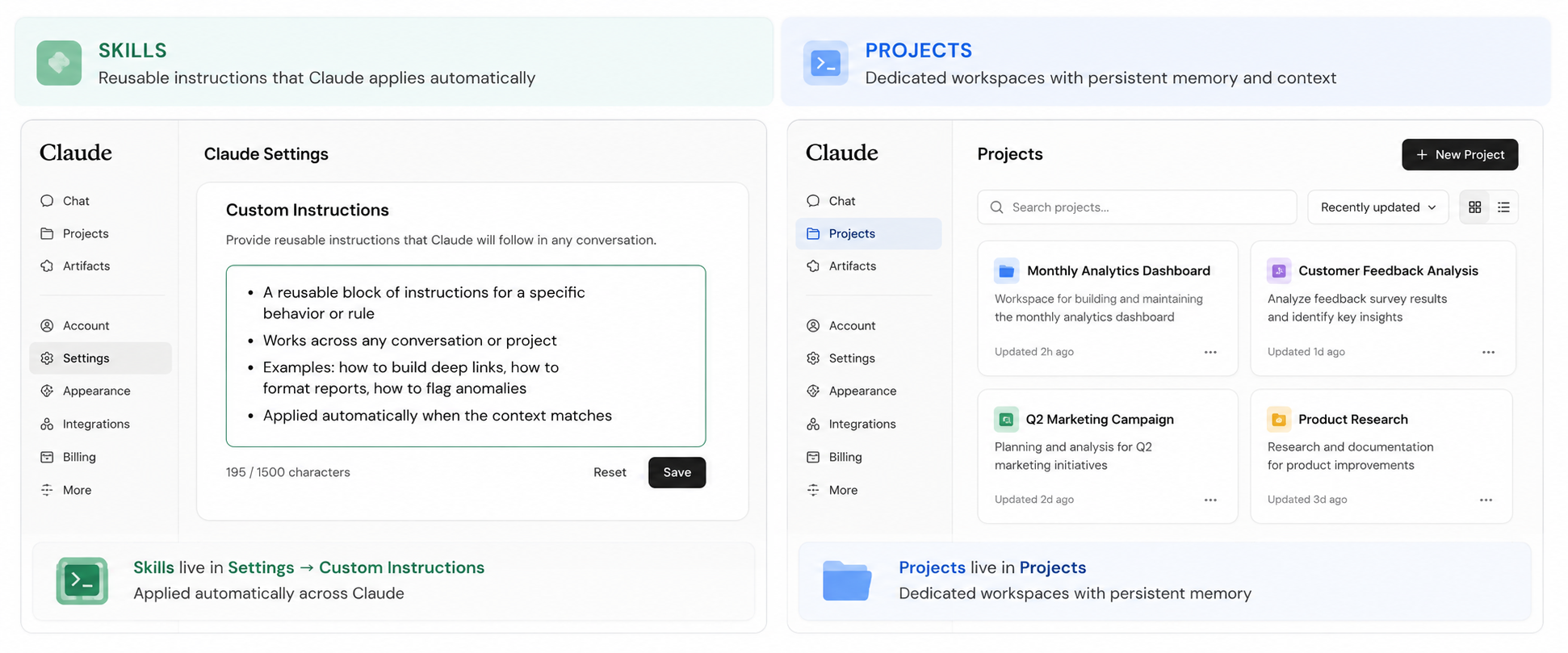
A skill is a block of reusable instructions you paste once into Claude’s settings. It teaches Claude a specific behavior, workflow, or set of rules. Once installed, Claude applies it automatically whenever the context matches, without needing to be reminded.
Skills are different from Projects. A Project is a full self-contained workspace for a specific recurring task, like the Website Analytics Dashboard or the Feedback Response Analyzer. A skill is more modular: a building block you can use across different projects and conversations.
5 ways to use skills with Mouseflow
All five examples below are possible today with Mouseflow and Claude connected via the MCP server. Some have a pre-built skill ready to install, others you configure yourself based on your team’s specific needs.
- Standardized UX reports
Define how findings should be structured, grouped by page type, flagged above a custom rage click threshold, and formatted for stakeholders. Claude pulls the data from Mouseflow and applies that structure automatically.
The Website Analytics Dashboard skill already handles this. It queries your Mouseflow data, flags significant changes automatically, and delivers a structured report with an Executive Summary ready to share with stakeholders. You just ask for a time range. - Funnel drop-off analysis
Encode your default segments to compare, how to interpret step-by-step drop-off rates, and which follow-up questions to surface at each step. Combined with the Mouseflow MCP, Claude retrieves the live funnel data and applies that logic automatically. The Website Analytics Dashboard skill includes a dedicated funnel section that does this automatically. It retrieves your live funnel data, calculates drop-off rates per step, surfaces segment comparisons, and generates direct links to the sessions that dropped at each step. No configuration needed. - Session tagging and annotation workflows
If your team follows a standard process for reviewing and annotating sessions, filtering by specific tags, device types, or user segments, you can encode that process as a skill. Claude will then execute it consistently across team members. There is no pre-built skill for this today, but you can create your own by defining the filters, tags, and annotation format your team uses, and pasting those instructions into Claude’s custom instructions. - Cross-tool workflows
Skills can combine the Mouseflow MCP with other tools you have connected to Claude, like Slack or Jira. For example, Claude can pull a drop-off report from Mouseflow, summarize the findings, and post them to a Slack channel or create a Jira ticket, all in one request. There is no pre-built skill for this today. To set it up, you define the workflow steps in your skill instructions: which data to pull, how to summarize it, and where to send it. - Dashboard design and UI
Build visualizations that match your product’s look and feel. A design skill overrides Claude’s default styling so every dashboard output looks consistent with your product UI. The Website Analytics Dashboard skill already includes a design layer that follows the Mouseflow product UI, so every generated dashboard looks like it belongs inside the product.
How to install a skill
Skills are installed by pasting a block of instructions into Claude’s settings. The process is the same on Claude.ai and Claude Desktop.
1 – Find and copy the skill instructions
Open the setup article and find the skill you want to install by its name. Each skill has a clearly labeled block of instructions below it. Select all the text in that block, from the very first line to the very last line, and copy it. Each block ends before the next skill’s heading begins.
2 – Open Claude’s custom instructions
On Claude.ai: go to Settings, then Custom Instructions, and paste the skill there.
On Claude Desktop: open Settings, then Skills or Custom Instructions depending on your version, and paste it in the same way.
3 – Make sure the Mouseflow MCP is connected
Skills that retrieve live data require the Mouseflow MCP connector to be active. Go to Settings, then Integrations, and confirm it is connected. If you have not set it up yet, follow the Mouseflow MCP Server installation guide.
4 – Use it in any conversation
Once installed, the skill is available across all your conversations. Claude applies it automatically whenever the context matches, without needing to be referenced explicitly each time.
Pre-built skills available today
A pre-built skill is a ready-made block of instructions created and tested by Mouseflow. It encodes a complete workflow, so you don’t need to write anything from scratch or figure out how to prompt Claude. You just copy it, paste it into Claude’s custom instructions, and it works.
Three pre-built skills are available today, each covering a different type of work with your Mouseflow data.
Mouseflow Deep Links
Ensures every report or dashboard Claude builds includes working links back into Mouseflow, pre-filtered by page, date range, and friction type.
Without this skill, Claude may generate Mouseflow URLs that don’t match the correct region, miss required filter parameters, or open the wrong date range. This skill encodes every supported link pattern so links always land exactly where they should.
Already configured in this skill
- Regional domain logic, EU vs. US accounts handled automatically
- Date parameters included on every link so Mouseflow opens the correct period
- Links to recordings pre-filtered by page and friction type, so you land exactly where you need to be
- Link patterns for recordings, heatmaps, funnels, forms, journeys, and the dashboard
To install: open the setup article, find the Mouseflow Deep Links section, select the full block from the first line to the last, and paste it into Claude’s custom instructions.
Website Analytics Dashboard
Turns a date range request into a complete monthly analytics report covering friction, conversions, funnels, and top pages.
This skill encodes the full logic for building a recurring analytics dashboard from your Mouseflow data. You ask for a time range, Claude handles everything else.
Already configured in this skill
- 7 reporting sections: click rage, click errors, dead clicks, 404s, form conversions, funnels, top and exit pages
- Month-by-month data collection with month-over-month trend calculation
- Automatic flagging rules for spikes and drops across all sections
- Executive Summary drawer per section with narrative bullets, flags, and prioritized actions
- Direct deep links into Mouseflow for every flagged page and funnel step
- Dashboard design following the Mouseflow product UI
To install: open the setup article, find the Website Analytics Dashboard section, select the full block, and paste it into Claude’s custom instructions or a dedicated Claude Project.
Feedback Response Analyzer
Connects to your live Mouseflow feedback surveys and produces a structured analysis with score distribution, sentiment themes, and recommended actions.
This skill tells Claude how to approach a feedback analysis from start to finish. Point it at a campaign and it handles the rest.
Already configured in this skill
- 6 report sections in a fixed order: key stats, score distribution, happiest vs. most unsatisfied, trend over time, AI sentiment summary, suggested actions
- Score bucketing for NPS, CSAT, and custom numeric scales
- Open-text synthesis grouped by sentiment: praise points, pain points, frequently mentioned features
- Direct link from each response to its session recording in Mouseflow
- 3 to 5 evidence-backed recommendations, each citing the data that supports it
To install: open the setup article, find the Feedback Response Analyzer section, select the full block, and paste it into Claude’s custom instructions or a dedicated Claude Project.
Quick recap
- Skills are reusable instructions that teach Claude your team’s workflows, applied automatically across all conversations
- All 5 examples are possible today with Mouseflow and Claude connected via MCP. Three have a pre-built skill ready to install, and two are workflows you can define yourself based on your team’s needs
- To install: find the skill in the setup article, copy the full block, and paste it into Claude’s custom instructions
- Make sure the Mouseflow MCP connector is active before running any skill that queries live data
- Three pre-built skills are available today: Deep Links, Website Analytics Dashboard, and Feedback Response Analyzer